
In this blog, we will see how to use Voice Notes in Firefox.
Introduction
Voice Notes helps you write in Firefox without using the keyboard. Click the floating microphone, speak naturally, and watch your words appear in the selected text field or editor.
Speech is processed on your device, so you can continue dictating even when you are offline.
For related mobile solutions, visit Mobikul.
How to Use Voice Notes in Firefox
Try these steps with a message box or a simple online note.
- Click inside the text field.
- Click the floating microphone.
- Start speaking at a normal pace.
- Pause when you finish your sentence.
- Read the text and make any small corrections.

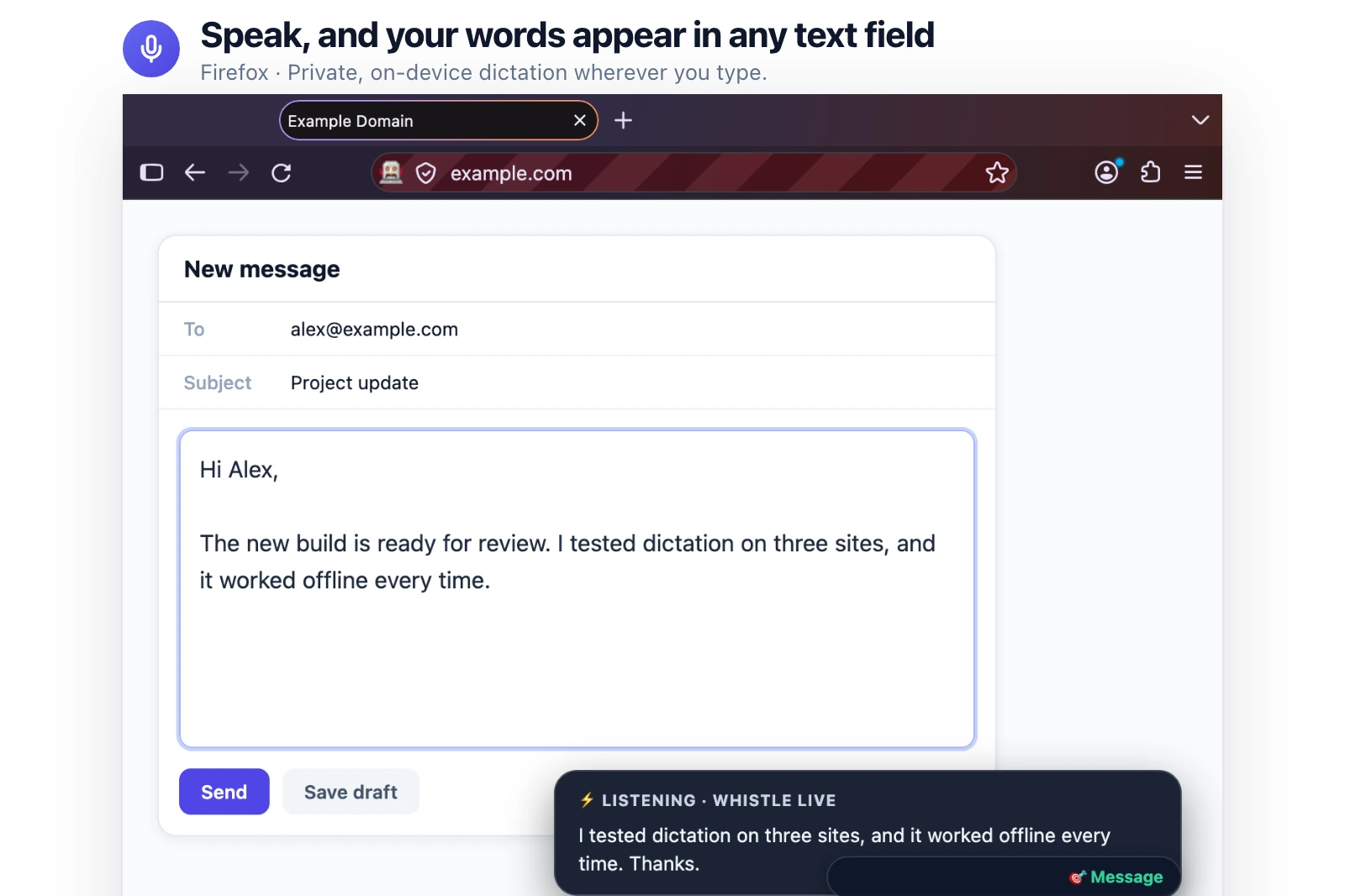
Choose How Text Appears
Voice Notes offers two text display options. You can see words appear instantly or view the complete sentence after speaking. Choose your preferred option in settings.
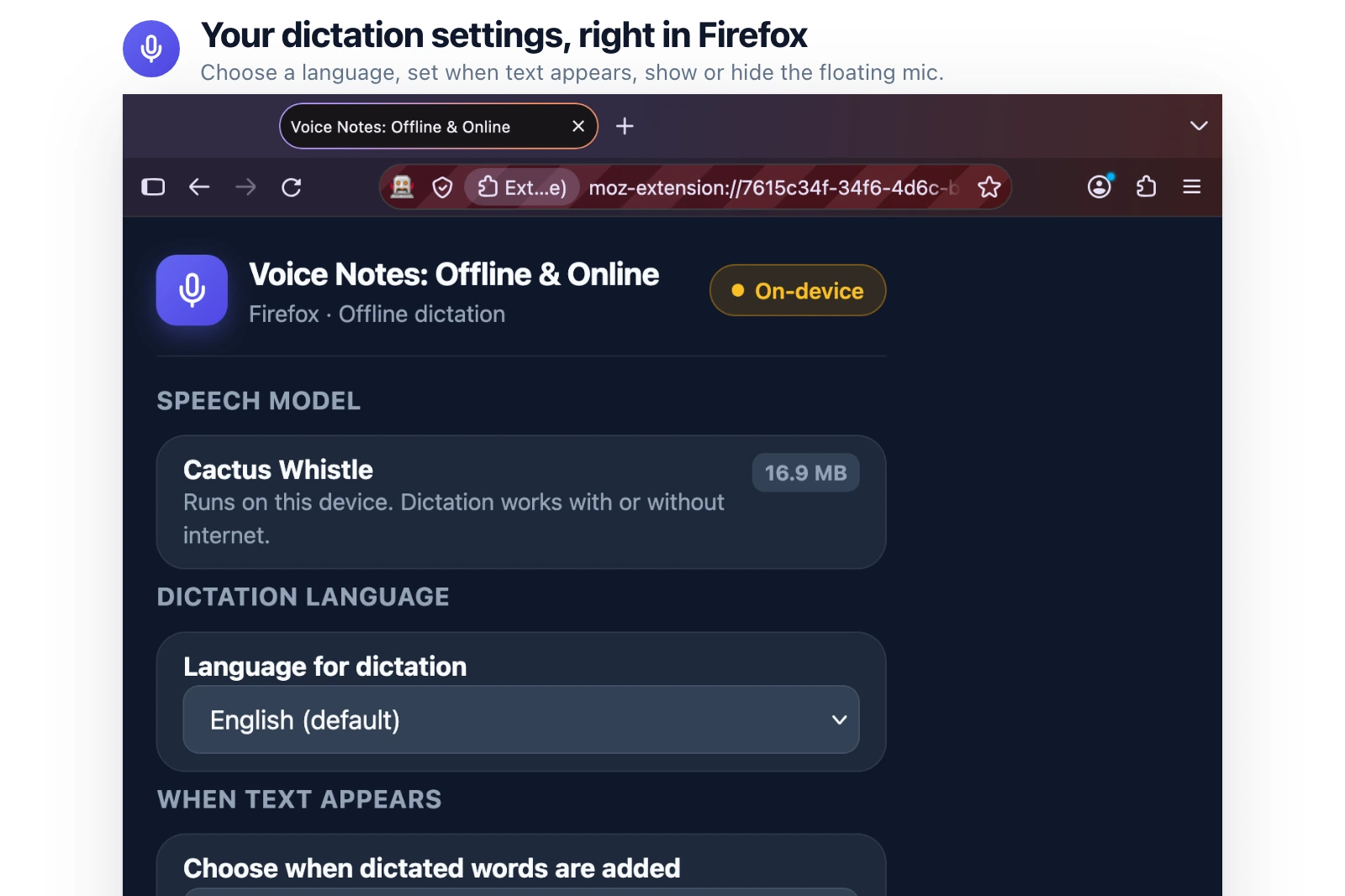
Change Voice Notes Settings
The settings page keeps the important controls in one place. You can choose a language, change when words appear, and show or hide the floating microphone.
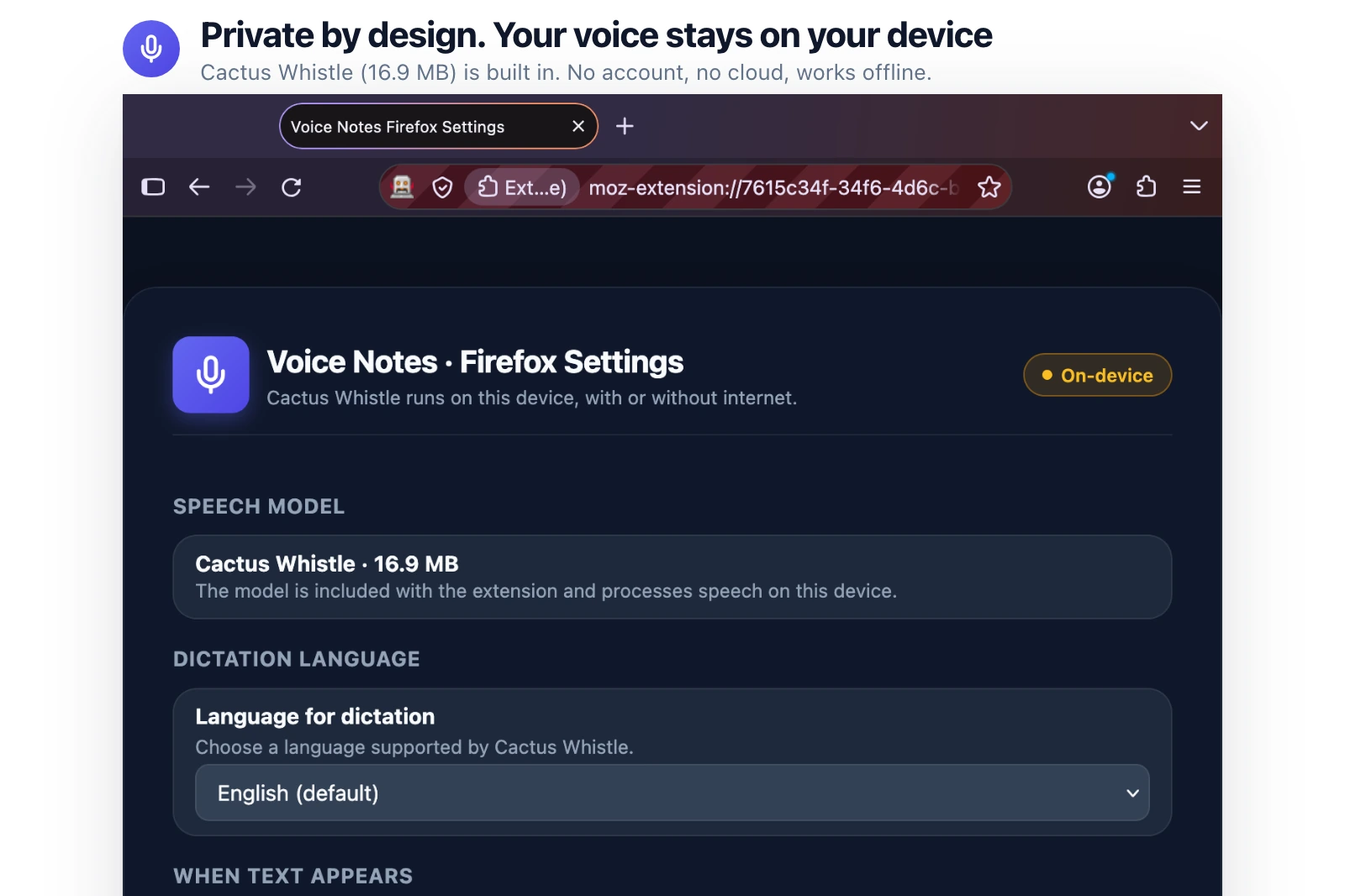
Keep Your Voice on Your Device
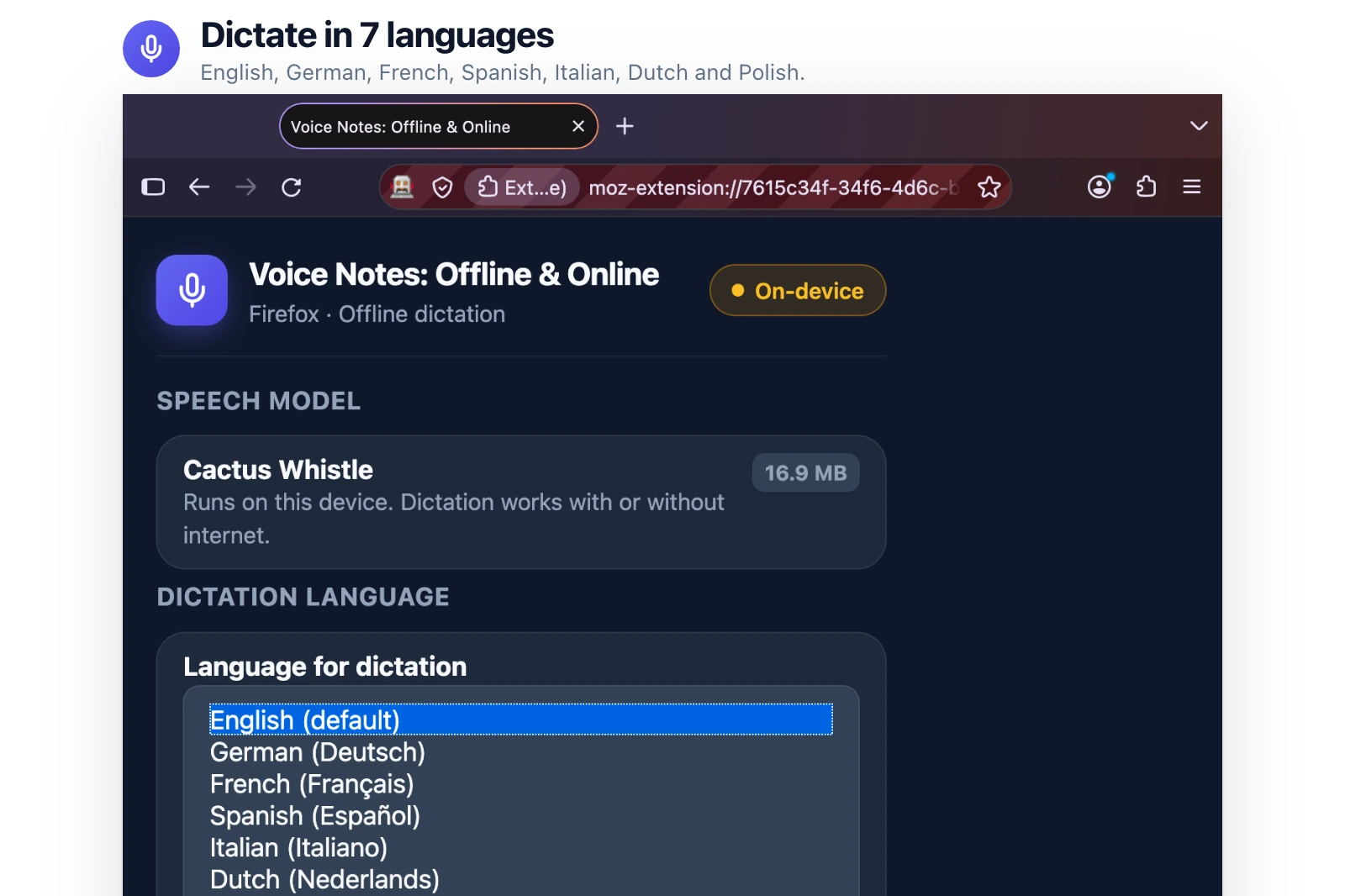
Voice Notes uses the Cactus Whistle model on your device to turn speech into text. Your audio and transcription stay on the device. No account is needed for normal dictation.
This is useful when you are writing private notes or working without a stable connection.
Choose a Language
Voice Notes supports seven languages: English, German, French, Spanish, Italian, Dutch, and Polish. English is the default language. Open the language menu to switch.
Tips for Better Dictation
Speak clearly, especially when you start a new sentence or use a name. If the result is not right, simply edit the words in the text field like normal typing.
Result
Voice Notes changes spoken words into text inside the selected Firefox field. It is simple to start, works across Firefox text fields, and keeps speech processing on your device.
Conclusion
Using Voice Notes is as easy as selecting a text field, clicking the microphone, and speaking. Use the settings when you need another language, a different text timing, or a hidden microphone.
For custom mobile app development or further technical assistance, reach out to our team at Mobikul Contact.
Thanks for reading this blog.