
Introduction
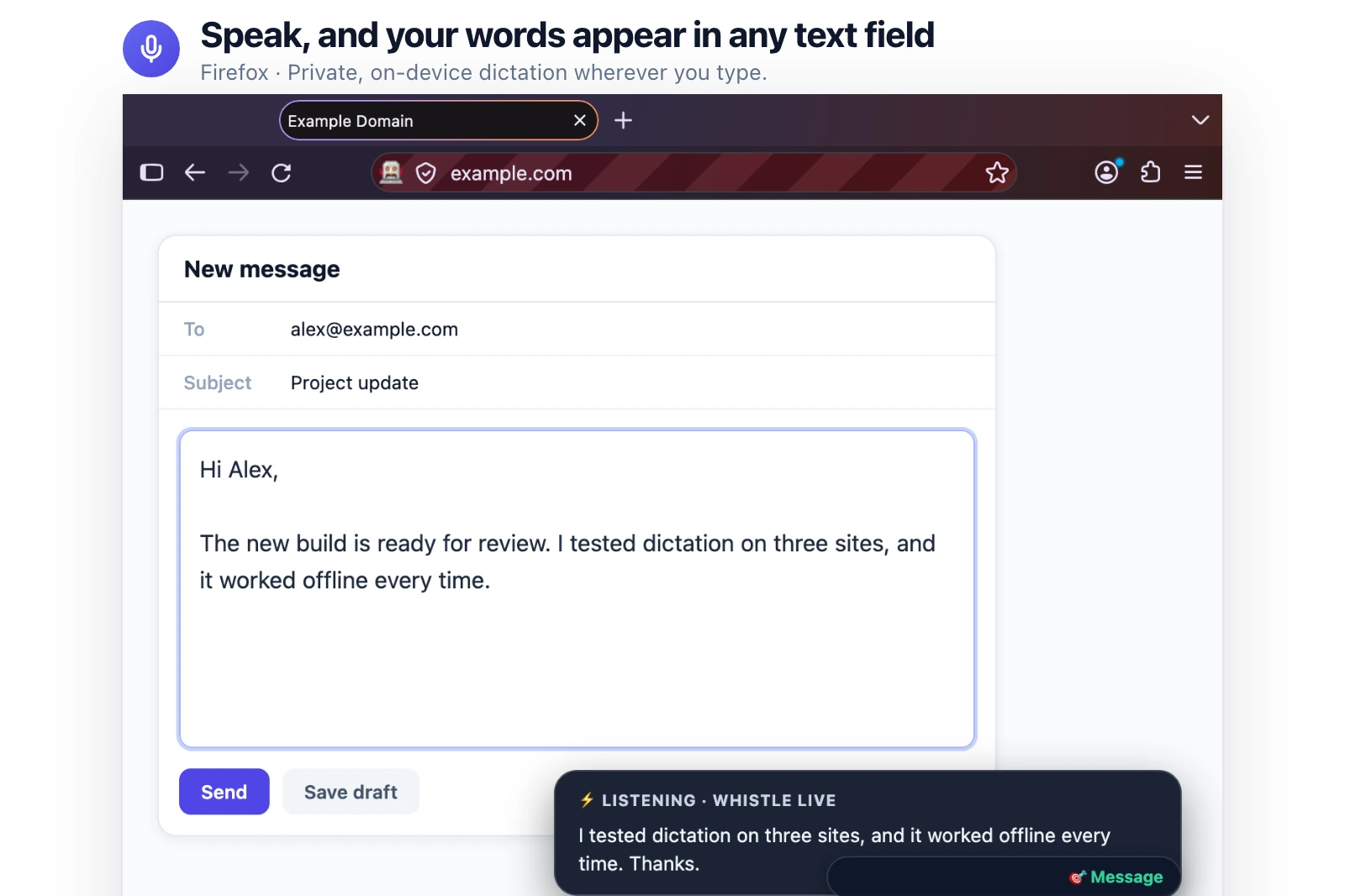
Voice Notes lets you type using your voice in Firefox. Click inside a text field, select the floating microphone, and start speaking. Your words will appear as written text in the selected field.
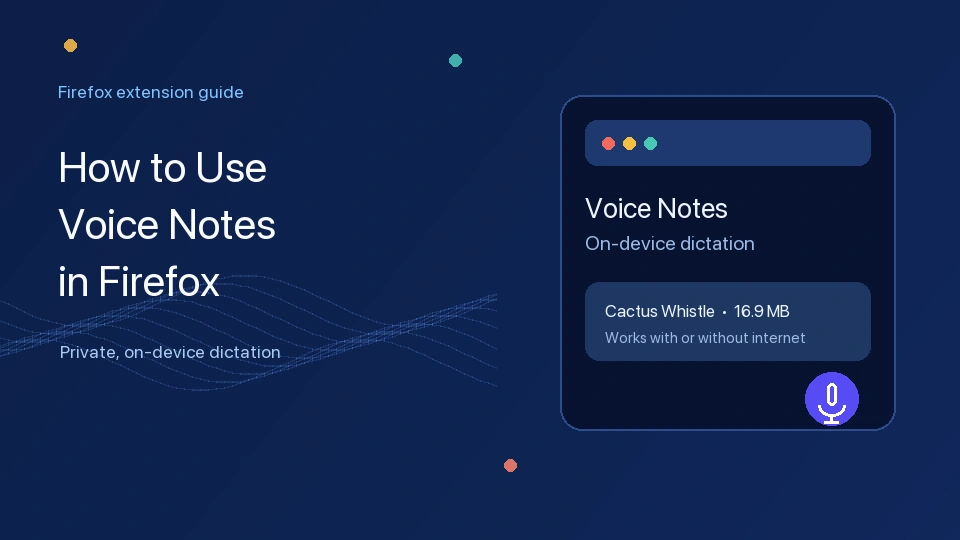
The extension includes Whisper Tiny for English dictation. You can also download Cactus Whistle for seven languages and live typing.
Download Speech to Text – Voice Notes from Firefox Add-ons.
Supported Firefox Platforms
The official listing supports Firefox 140 and newer on desktop and Android devices.
The extension is made for Firefox websites and text fields. It is not listed as a Chrome or iPhone/iPad extension.
How to Use Speech to Text – Voice Notes in Firefox
Follow these steps to use voice typing in Firefox:
- Open a website in Firefox.
- Click inside the text field or editor where you want to write.
- If Firefox asks for microphone permission, click Allow. Microphone access is required for voice dictation.
- Click the floating microphone.
- Start speaking clearly.
- Use the microphone control to stop dictation when you finish.
- Read the written text and correct it if needed.
Voice Notes converts your speech into text in the field or editor you selected. It is designed for text fields and editors on websites in Firefox.

Choose When Your Words Appear
Voice Notes lets you choose when the written words appear.
After I stop speaking: your words appear after you finish speaking. Whisper Tiny uses this option. Cactus Whistle also uses it by default.
While I speak: your words appear on the screen as you speak. To use this option, select Cactus Whistle and choose While I speak in settings.
Change Voice Notes Settings
Open Voice Notes settings when you want to change the speech model, language, or text timing.
- Open the Voice Notes settings page.
- Choose Whisper Tiny or Cactus Whistle.
- If you choose Cactus Whistle, select its download option and wait for the download to finish.
- Choose a language.
- Choose While I speak or After I stop speaking.
Whisper Tiny is included with the extension. Cactus Whistle is an optional 16.9 MB download and needs internet access for its first download.


Use Voice Notes Without Internet
Voice Notes converts speech into text directly on your device. Your audio and written transcriptions stay on your device.
Whisper Tiny works offline from the beginning. Cactus Whistle needs internet access for its first download. After it is downloaded, you can also use Cactus Whistle without internet.
Permissions and Privacy
Firefox may ask for microphone access because Voice Notes needs to hear your speech for dictation.
The listing requires clipboard input and website access. These permissions support placing dictated words in selected fields and showing the floating microphone on websites.
Speech recognition runs on your device. The listing says your audio and transcripts stay on the device, and the developer says the extension does not require data collection.
Choose a Language
Whisper Tiny supports English.
Cactus Whistle supports seven languages:
- English
- German
- French
- Spanish
- Italian
- Dutch
- Polish
Choose the language you want in Voice Notes settings.
Tips for Better Voice Typing
- Speak clearly and at a normal speed.
- Reduce background noise for better recognition.
- Check the selected language before dictating.
- Use a good microphone when possible.
- Review the written text and correct mistakes.
- If the microphone does not work, check Firefox microphone permissions.
Frequently Asked Questions
Does Voice Notes work offline?
Yes. Whisper Tiny works offline immediately. Cactus Whistle works offline after its first download.
Which languages does it support?
Whisper Tiny supports English. Cactus Whistle supports English, German, French, Spanish, Italian, Dutch, and Polish.
Is Cactus Whistle required?
No. Whisper Tiny is included. Cactus Whistle is optional when you need more languages or live transcription.
Can I see text while speaking?
Yes, after downloading Cactus Whistle, select While I speak in Voice Notes settings.
Are voice recordings collected or uploaded?
The listing says audio and transcripts stay on your device, and the developer says the extension does not require data collection.
Result
Voice Notes lets you use voice typing in Firefox text fields and editors.
Cactus Whistle supports seven languages, live or after-stop typing, on-device speech processing, and offline use after its required download.
Conclusion
Speech to Text – Voice Notes makes writing in Firefox easier. Speak into the floating microphone, and the extension adds your words to the selected text field.
Whisper Tiny is included for English dictation. Cactus Whistle adds six more languages and lets you show words while you speak.
Download Speech to Text – Voice Notes from the official Firefox Add-ons page and try voice typing in Firefox.