Flutter Apps for Huawei Devices are becoming increasingly important as Huawei continues to expand its ecosystem with Huawei Mobile Services (HMS).
For Huawei smartphones, replace Google Mobile Services (GMS) APIs with Huawei Mobile Services (HMS) to ensure full compatibility.
This guide explains how to develop Flutter Apps for Huawei Devices and configure your project with Huawei Mobile Services (HMS).
Additionally, you’ll learn to integrate Huawei Push Kit, Map Kit, Location Kit, Analytics Kit, and Account Kit with practical Flutter code examples.
Finally, you’ll learn how to publish Flutter Apps for Huawei Devices to Huawei AppGallery with step-by-step instructions.
You can read more interesting blogs by mobikul .
In this guide, you’ll learn:
- What Huawei Mobile Services (HMS) is
- Differences between GMS and HMS
- How to configure a Flutter project for Huawei
- Integrate HMS plugins
- Handle Push Notifications, Maps, Location, Analytics, Authentication, and In-App Purchases
- Best practices for publishing to Huawei AppGallery
- Complete Flutter code examples
Why Huawei Devices Need HMS
Developing Flutter apps for Huawei devices requires replacing Google Mobile Services (GMS) with Huawei Mobile Services (HMS).
This enables features such as push notifications, maps, analytics, authentication, and location services.
Examples:
| Feature | Huawei | |
|---|---|---|
| Maps | Google Maps | Huawei Map Kit |
| Push Notifications | Firebase Cloud Messaging | Huawei Push Kit |
| Analytics | Firebase Analytics | Huawei Analytics Kit |
| Authentication | Google Sign-In | Huawei Account Kit |
| Location | Google Location Services | Huawei Location Kit |
| In-App Purchase | Google Play Billing | Huawei IAP Kit |
HMS Architecture
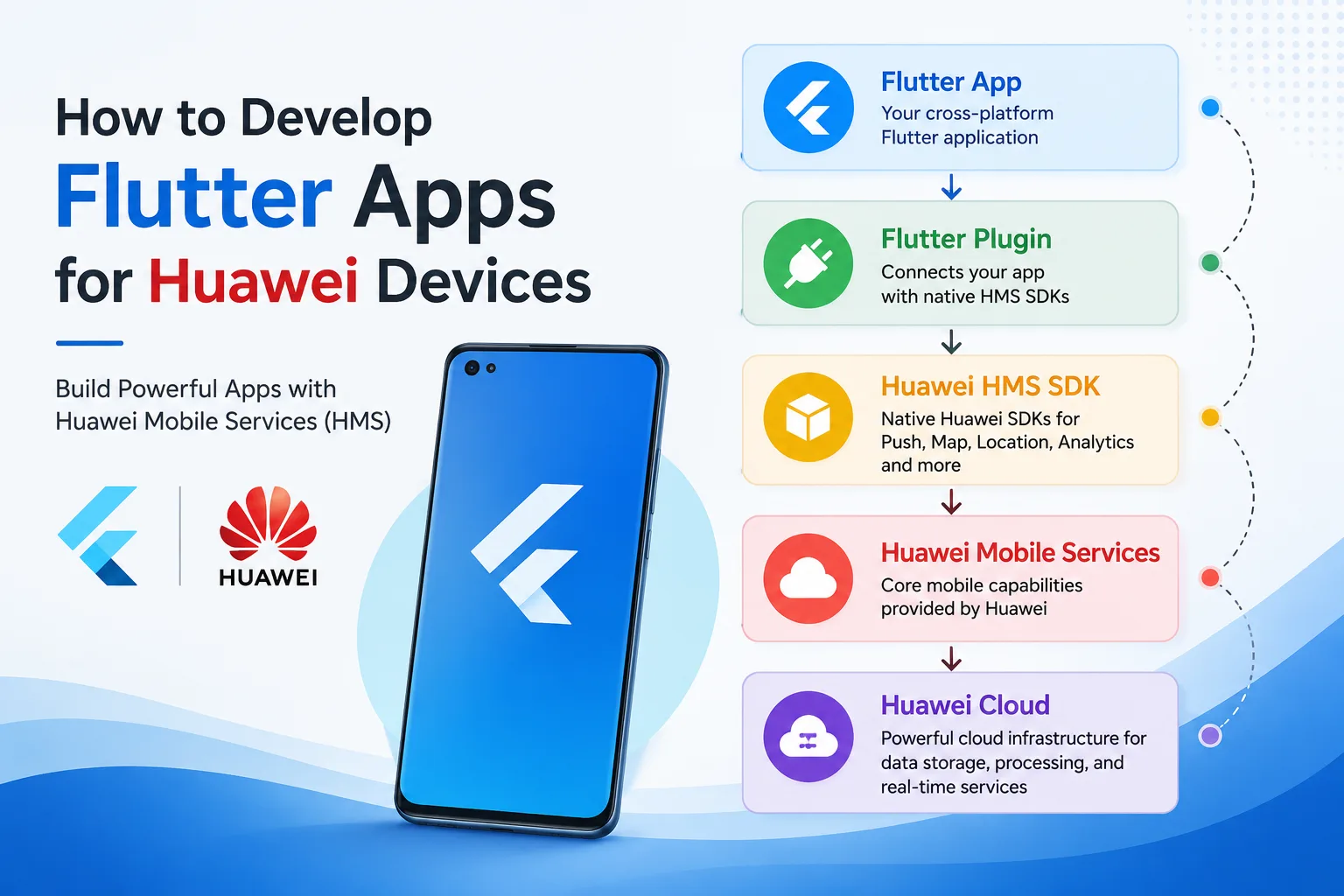
Prerequisites
Before you begin, configure Flutter, Android Studio, and your Huawei Developer account.
- Flutter SDK
- Android Studio
- Huawei Developer Account
- Huawei AppGallery Connect project
- Physical Huawei device (recommended)
Step 1: Configure Gradle
Project Level build.gradle
|
1 2 3 4 5 6 7 8 9 10 11 12 13 |
buildscript { repositories { google() mavenCentral() maven { url 'https://developer.huawei.com/repo/' } } dependencies { classpath 'com.huawei.agconnect:agcp:1.9.1.301'<span dir="auto" style="vertical-align: inherit"><span dir="auto" style="vertical-align: inherit"> }</span></span> } |
App Level build.gradle
|
1 2 3 4 |
plugins { id 'com.android.application' id 'com.huawei.agconnect'<span dir="auto" style="vertical-align: inherit"><span dir="auto" style="vertical-align: inherit"> }</span></span> |
Step 2: Add HMS Flutter Packages
pubspec.yaml
|
1 2 3 4 5 6 7 8 9 10 |
dependencies: flutter: sdk: flutter huawei_push: ^6.12.0+300 huawei_location: ^6.12.0+300 huawei_map: ^6.12.0+300 huawei_analytics: ^6.12.0+300 huawei_account: ^6.12.0+300 huawei_iap: ^6.12.0+300 |
Install packages
|
1 |
flutter pub get |
Step 3: Add AGConnect Configuration
Place the configuration file inside:
|
1 |
android/app/agconnect-services.json |
Step 4: Android Permissions
AndroidManifest.xml
|
1 2 3 4 5 |
<uses-permission android:name="android.permission.INTERNET"/> <uses-permission android:name="android.permission.ACCESS_FINE_LOCATION"/> <uses-permission android:name="android.permission.ACCESS_COARSE_LOCATION"/> |
Huawei Push Kit
|
1 |
import 'package:huawei_push/huawei_push.dart'; |
Configure Huawei Push Kit
|
1 2 3 4 5 6 7 8 9 10 11 |
Future<void> initPush() async { await Push.enableLogger(); Push.getToken("").then((token) { print("Push Token : $token"); }); } |
Receive Push Token
|
1 2 3 4 5 |
Push.onTokenReceivedStream.listen((event) { print(event.token); }); |
Listen for Notifications
|
1 2 3 4 5 |
Push.onMessageReceivedStream.listen((RemoteMessage message) { print(message.data); <span dir="auto" style="vertical-align: inherit"><span dir="auto" style="vertical-align: inherit"> });</span></span> |
Huawei Analytics Kit
|
1 |
import 'package:huawei_analytics/huawei_analytics.dart'; |
Initialize Analytics
|
1 2 3 4 5 |
Future<void> initAnalytics() async { await HMSAnalytics.getInstance(); <span dir="auto" style="vertical-align: inherit"><span dir="auto" style="vertical-align: inherit"> }</span></span> |
Log Analytics Event
|
1 2 3 4 5 6 7 8 9 |
await HMSAnalytics.onEvent( "login", { "method": "email" } ); |
Huawei Account Kit
|
1 |
import 'package:huawei_account/huawei_account.dart'; |
Login with Huawei
|
1 2 3 4 5 6 7 8 9 |
Future<void> signIn() async { final helper = AccountAuthService(); final user = await helper.signIn(); print(user.displayName); <span dir="auto" style="vertical-align: inherit"><span dir="auto" style="vertical-align: inherit"> }</span></span> |
Huawei Location Kit
|
1 |
import 'package:huawei_location/huawei_location.dart'; |
Get Current Location
|
1 2 3 4 5 6 7 8 |
final locationService = FusedLocationProviderClient(); Location location = await locationService.getLastLocation(); print(location.latitude); print(location.longitude); |
Huawei Map Kit
Display Huawei Map
|
1 2 3 4 5 6 7 8 9 10 11 12 13 14 |
HuaweiMap( initialCameraPosition: CameraPosition( target: LatLng( 28.6139, 77.2090, ), zoom: 12, ), ) |
Add Marker
|
1 2 3 4 5 6 7 8 9 10 |
Marker( <span dir="auto" style="vertical-align: inherit"><span dir="auto" style="vertical-align: inherit"> markerId: MarkerId("1"),</span></span> position: LatLng( 28.6139, 77.2090,<span dir="auto" style="vertical-align: inherit"><span dir="auto" style="vertical-align: inherit"> ),</span></span> <span dir="auto" style="vertical-align: inherit"><span dir="auto" style="vertical-align: inherit"> )</span></span> |
Huawei In-App Purchases
|
1 |
import 'package:huawei_iap/huawei_iap.dart'; |
Initialize IAP
|
1 |
await IapClient.startIapConnection(); |
Load Products
|
1 2 3 4 5 6 7 8 9 |
ProductInfoReq request = ProductInfoReq(); request.priceType = 0; request.productIds = [ "premium" ]; |
Purchase Product
|
1 2 3 4 5 |
PurchaseIntentReq request = PurchaseIntentReq(); request.productId = "premium"; await IapClient.createPurchaseIntent(request); |
Detect Huawei Device
|
1 2 3 4 5 6 7 |
<span dir="auto" style="vertical-align: inherit"><span dir="auto" style="vertical-align: inherit">import 'dart:io';</span></span> Future<bool> isHuaweiDevice() async { return Platform.isAndroid; <span dir="auto" style="vertical-align: inherit"><span dir="auto" style="vertical-align: inherit"> }</span></span> |
Note: For production applications, detect HMS availability instead of relying only on
Platform.isAndroid.
Create Push Service Interface
|
1 2 3 4 5 |
abstract class PushService { Future<void> init(); <span dir="auto" style="vertical-align: inherit"><span dir="auto" style="vertical-align: inherit"> }</span></span> |
Firebase Push Implementation
|
1 2 3 4 5 6 7 8 9 10 |
class FirebasePushService implements PushService { @override Future<void> init() async { // Firebase initialization <span dir="auto" style="vertical-align: inherit"><span dir="auto" style="vertical-align: inherit"> }</span></span> <span dir="auto" style="vertical-align: inherit"><span dir="auto" style="vertical-align: inherit"> }</span></span> |
Huawei Push Implementation
|
1 2 3 4 5 6 7 8 9 10 |
class HuaweiPushService implements PushService { @override Future<void> init() async { await Push.getToken(""); } } |
Build Release APK
|
1 |
flutter build apk --release |
Build App Bundle
|
1 |
flutter build appbundle |
Verify Flutter Environment
|
1 |
flutter doctor |
Install Dependencies Again
|
1 |
flutter pub get |
Best Practices
- Keep business logic independent of HMS-specific code.
- Detect HMS or GMS availability at runtime.
- Store credentials securely and avoid hardcoding.
- Next, test your app on both Huawei and GMS devices.
- Use the latest stable versions of HMS plugins.
- Request only the permissions your app requires.
- Finally, follow Huawei AppGallery guidelines before publishing.
Publishing to Huawei AppGallery
- Create an AppGallery Connect project.
- Configure package name and signing certificate.
- Download and add
agconnect-services.json. - Generate a signed release APK or App Bundle.
- Upload the build to AppGallery Connect.
- Complete privacy, permissions, screenshots, and store listing information.
- Submit the application for review.
Conclusion
Developing Flutter apps for Huawei devices is straightforward once your project is configured with Huawei Mobile Services (HMS).
By integrating Huawei Push Kit, Map Kit, Location Kit, Analytics Kit, Account Kit, and In-App Purchases, you can provide a seamless experience for Huawei users.
Build or migrate your Flutter app and publish it on Huawei AppGallery with HMS.
For more updates, make sure to keep following Mobikul Blogs to learn more about mobile app development.